In 2024, Canva — best known for its tools for creating low-key slide decks and social media
The newly updated Affinity 4 has four tabs: Layout (previously known as Affinity Publisher), Pixel (ex-Affinity Photo), Vector (formerly Affinity Designer), and a new tab, Typography. Affinity’s key advantage is that each tab lets you access a different set of tools, allowing all four tool kits to be used within a single file.
This piece focuses on how working with typography in Affinity’s Typography tab is different from working with typography in Adobe Illustrator (which is what it resembles the most).
Contents
| 1. | Better than Illustrator |
| 2. | Worse than Illustrator |
| 3. | Different than Illustrator |
Better than Illustrator
Cross-application interoperability
The poor interoperability within the Adobe Suite is a common topic for memes in the design community: a document created in Illustrator cannot be opened in InDesign. With Affinity, it takes just one click to switch to the Layout tab, with all the typographic settings you selected in the Typography tab kept intact.
Local glyphs
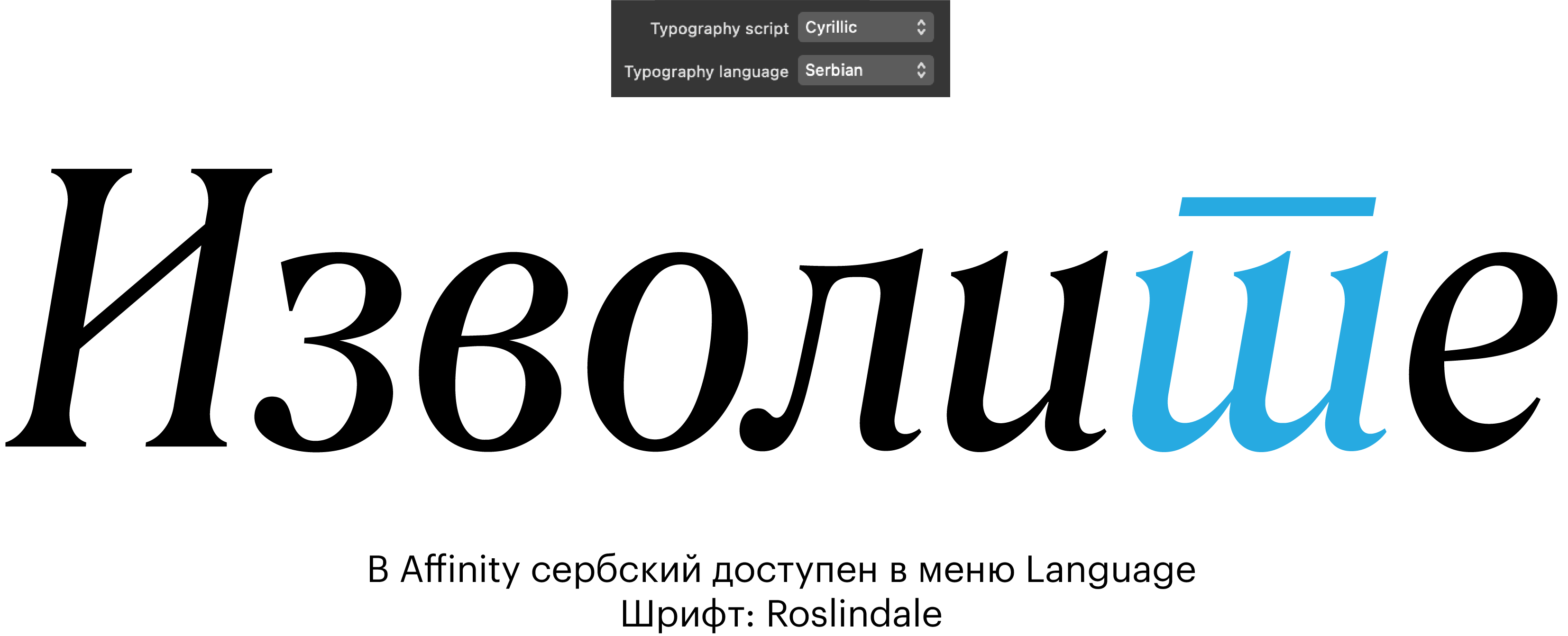
You can use the Typography Language menu to select the language in which the text is typeset.
Diacritics
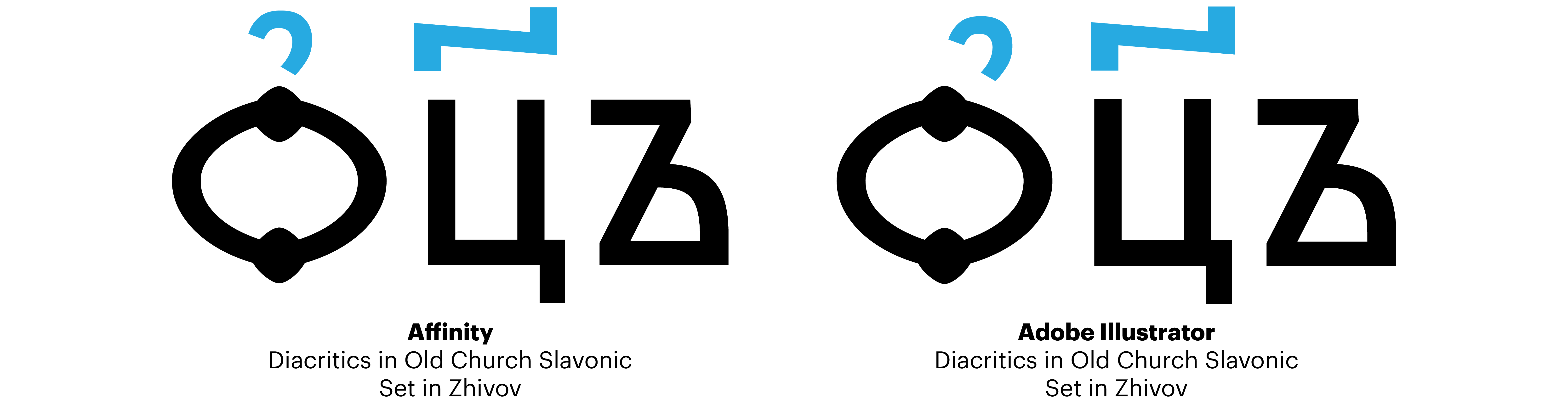
Most of the characters with diacritics used in European languages are covered by Unicode. Those that are not included in the standard are to be assembled like Lego bricks: the accent mark gets attached to the letter using an anchor. In Illustrator, the anchors may not work correctly. Affinity does not have this issue.
Strikethrough, Underlining
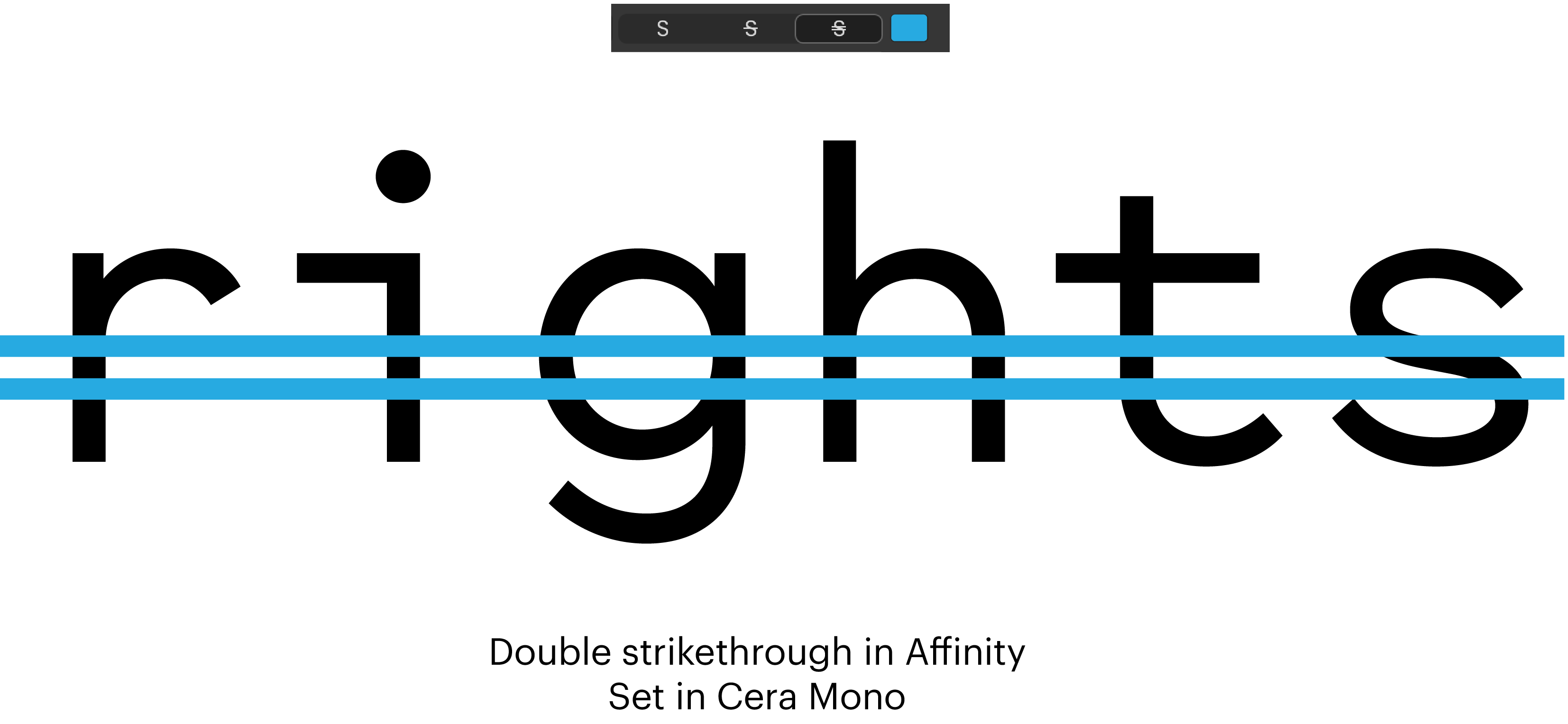
The Character panel features the Decoration setting, which lets you underline or strike through the text. The text might have a single or double underline; the colour of the strikethrough or underline may differ from that of the text itself. While this feature is also available in Illustrator, it requires way more time to do that there.
Worse than Illustrator
RTL languages
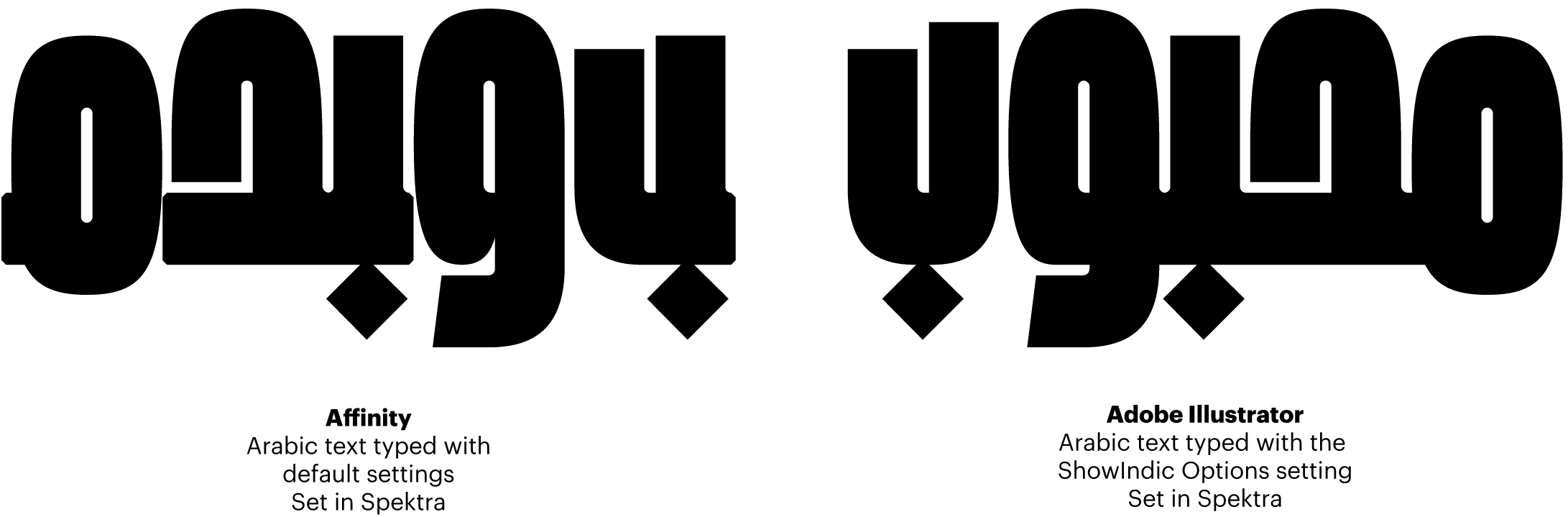
To work with languages written and read from right to left, such as Arabic and Hebrew, in Affinity, you need to install an additional application, RTL Fixer, which costs $29. Although RTL language support in Illustrator is far from perfect, it is still possible to correctly typeset several words or even lines without installing any additional
Variable fonts
Both Affinity and Illustrator support variable fonts. However, Affinity might have a problem with some of them. For instance, the Font Spectrum foundry reported that in typefaces featuring axes with uncommon names (such as Distortion) and two masters, intermediary styles are not displayed. There’s no such issue in Illustrator.
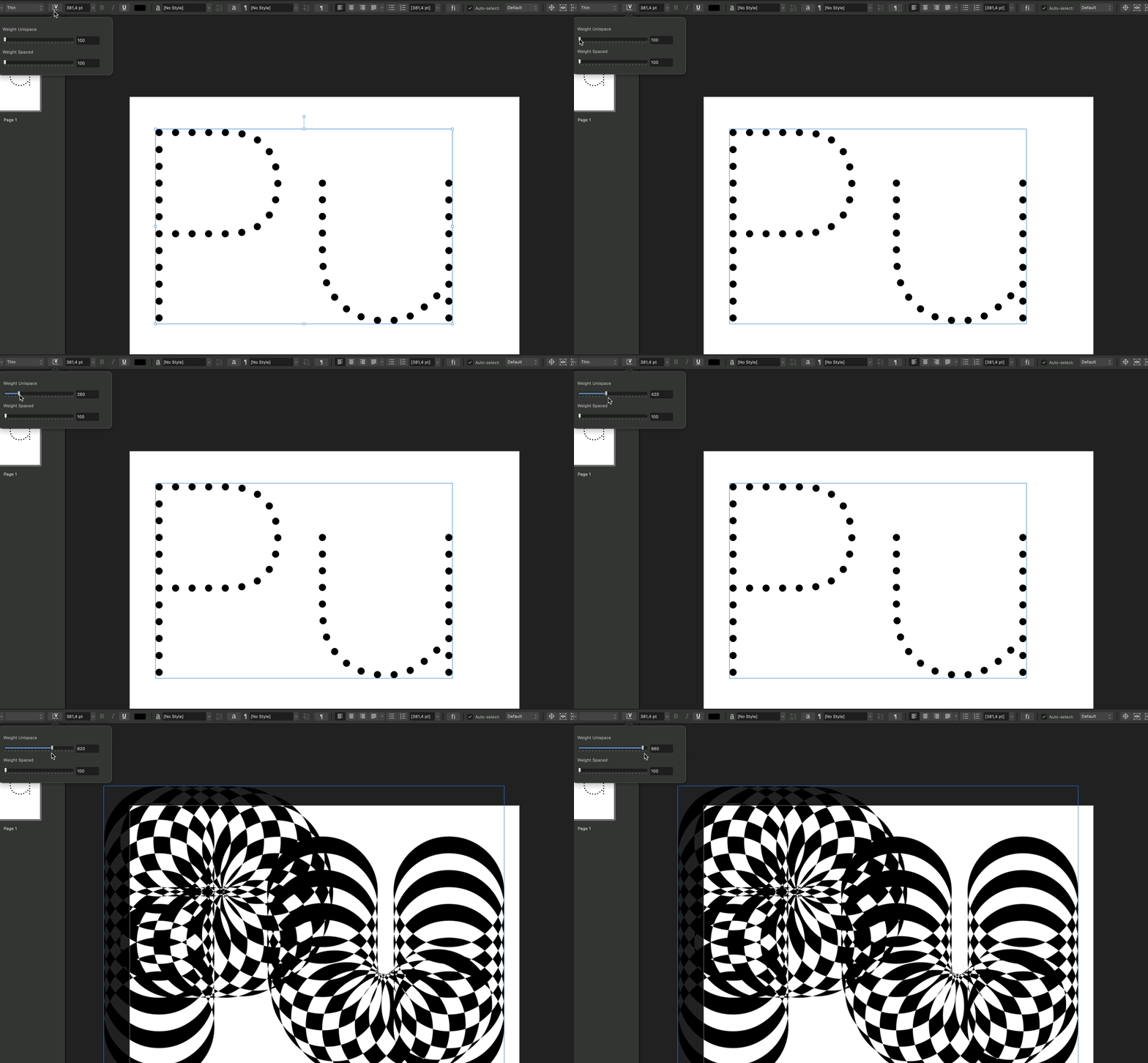 Issues with Purple Haze by Font Spectrum in Affinity
Font library
Unlike Adobe, Affinity does not include its own type marketplace, but the app users have access to 46 families from the Fontsmith Collection . The typefaces you choose can be used in commercial projects, but they won’t work outside the
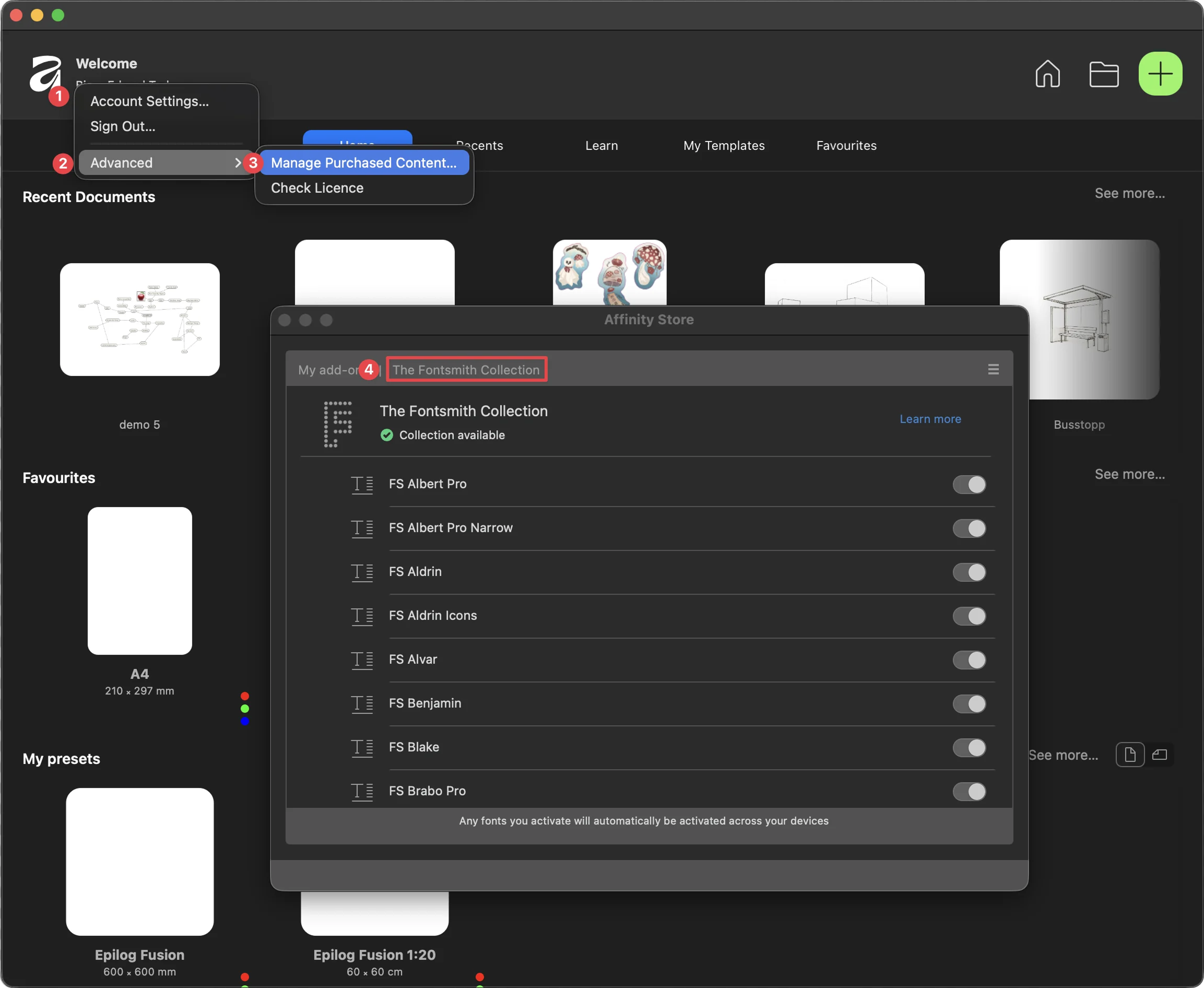 Uploading the Fontsmith collection in Affinity
AI features
The free version of Affinity doesn’t include image generation. To use Canva AI models, you need to purchase a subscription. Illustrator, as well as other Adobe Suite apps, features built-in artificial intelligence.
Canva AI won’t help you find a font used in the image or a font similar to it, while Adobe Illustrator does offer this functionality. Even though it’s not a 100% accurate Font ID.
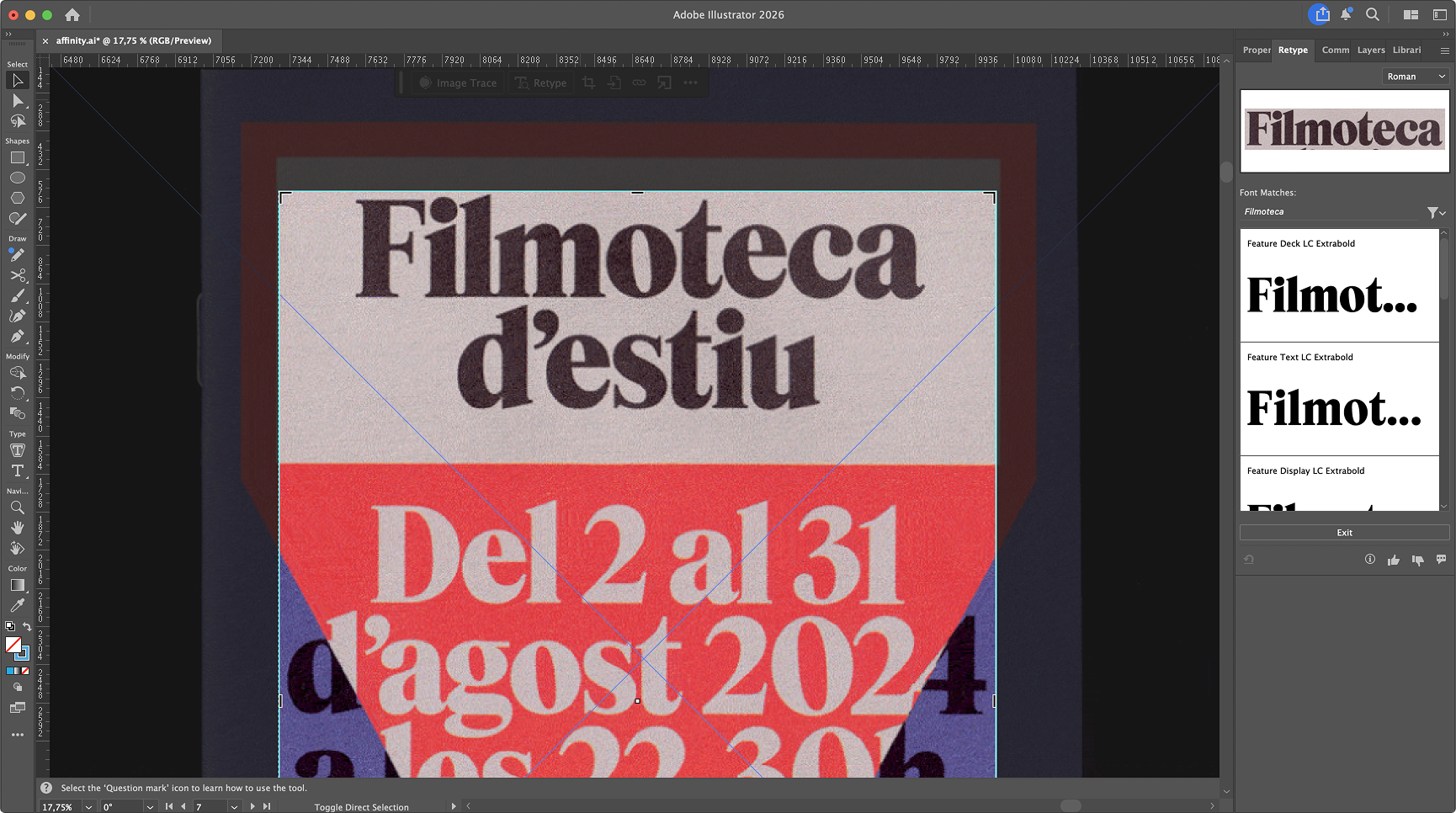 Retype function in Illustrator. Source image: Filmoteca d’Estiu film festival programme. Design: Fase Studio
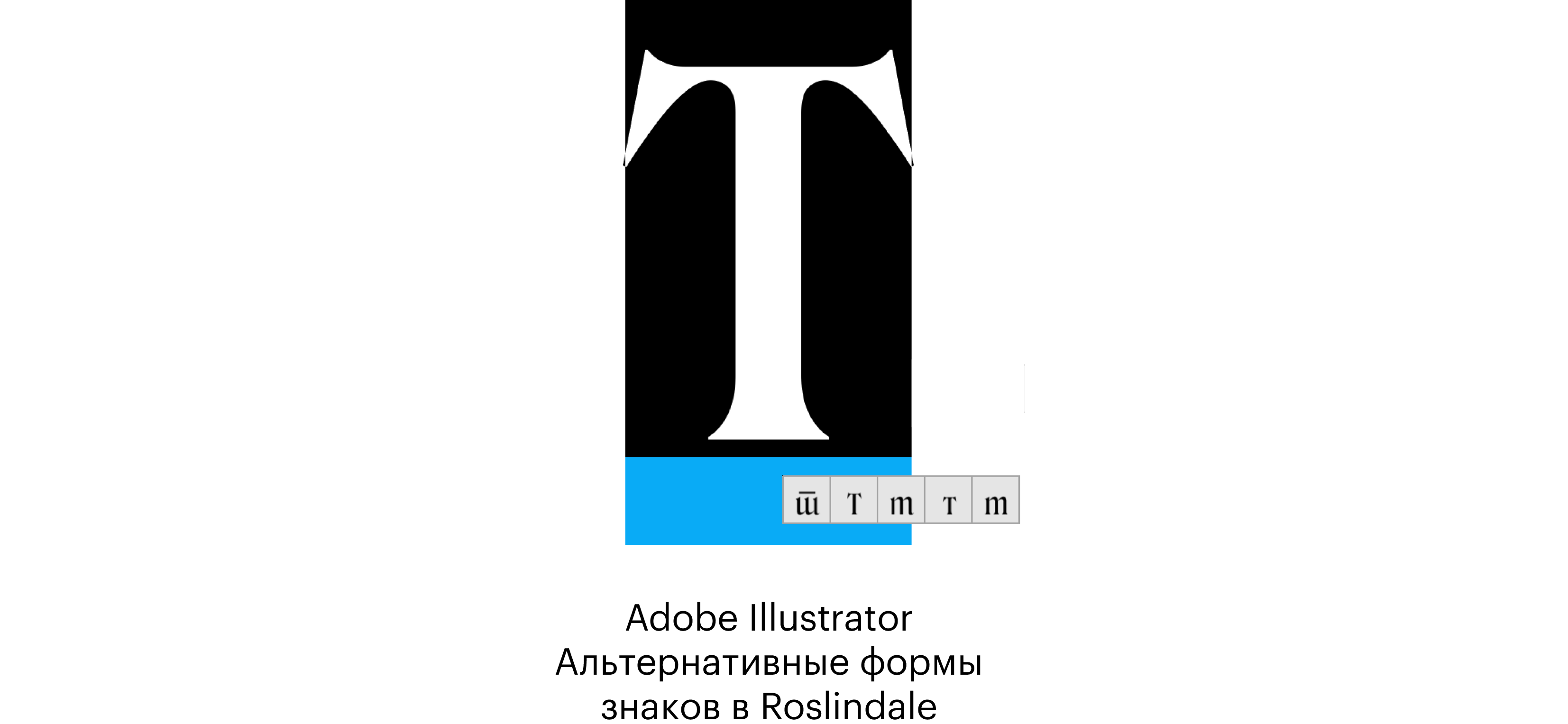
All glyph variants
When you select a character in Adobe Illustrator, a panel pops up displaying all the alternate glyphs of the character available in the font. Affinity doesn’t have anything like that.
Different than Illustrator
Text frame boundaries
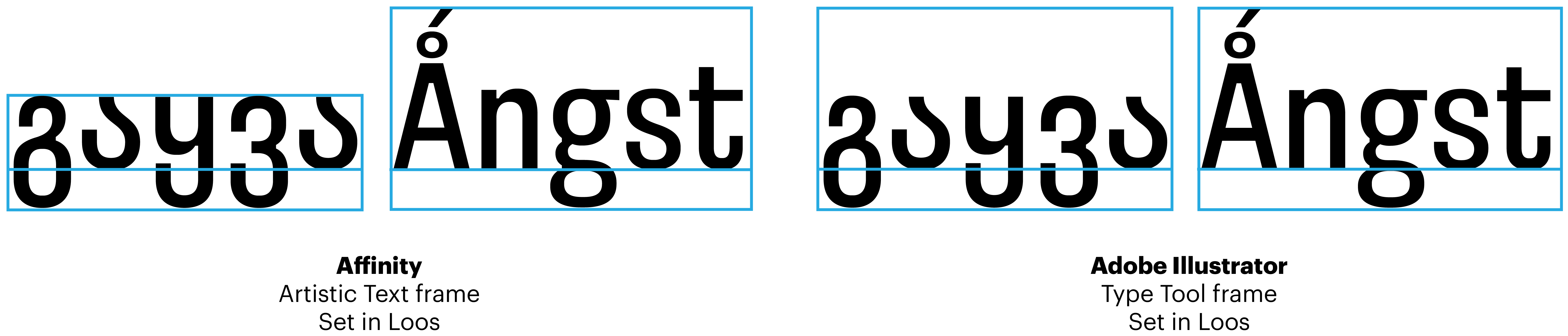
Both Affinity and Illustrator have two types of text frames: one for headlines and large lettering (Artistic Text, Type Tool), and another for longer texts (Frame Text, Area Type Tool). Their mechanics are quite
However, Affinity’s frame boundaries are determined by the highest and the lowest elements of its content, whereas in Illustrator, they are by default based on the em box size. Affinity wouldn’t let you change the settings to make the frame size depend on the em height.
Glyphs panel
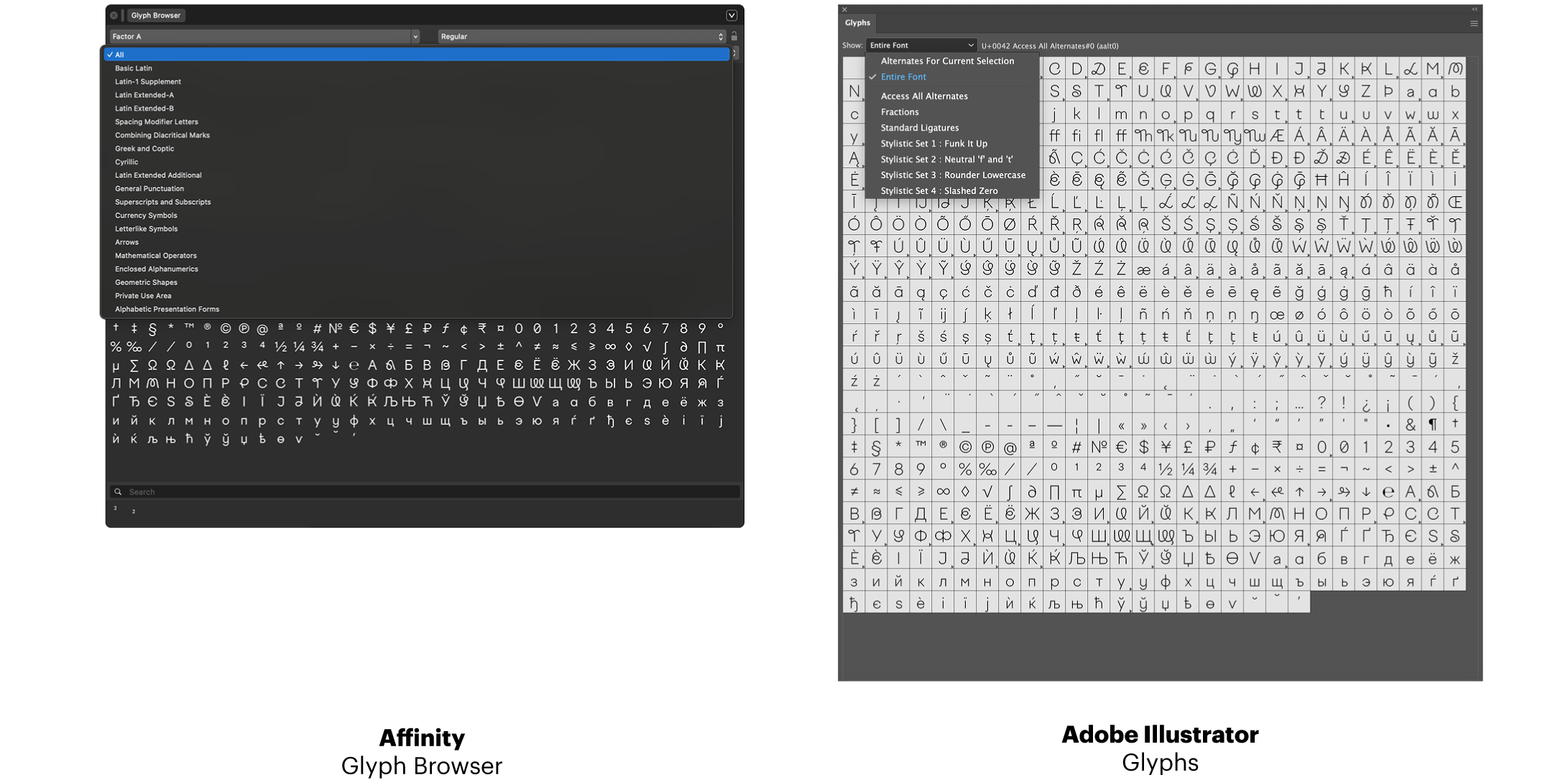
Both Affinity and Illustrator feature a panel that lets you view all the glyphs available in a font. However, the Glyphs panel in Illustrator lets you browse alternate glyph forms of each character and OpenType features, while Affinity’s Glyph Browser doesn’t include this functionality. At the same time, Affinity does offer an option to filter glyphs by specific Unicode blocks.
Text styles
Both Affinity and Illustrator allow you to create and edit text styles. In Affinity, though, you can apply a text style not in full, but
Kerning
Both Affinity and Illustrator let you adjust the font’s kerning. In both applications, kerning can be turned off or set to optical. But Affinity also allows for finer adjustment, letting you add new kerning pairs (though we wouldn’t recommend it unless you have enough relevant experience).